

Page Summary
-
This documentation explains how to add and style datasets on a Google Map using the Data-driven Styling (DDS) feature.
-
You can style features by applying simple style rules directly or using a
FeatureStyleFunctionfor declarative styling based on dataset attributes. -
To display your dataset, associate its ID with your map style in the Google Cloud console and add it as a feature layer to your map.
-
When displaying uploaded datasets, ensure proper attribution is included on the map using custom controls or other suitable methods.
-
Styling can be removed from a layer by setting its
styleproperty tonull, which can also be achieved within aFeatureStyleFunctionfor selective feature visibility.
The FeatureStyleFunction,
is where you define logic to selectively style features in a dataset. It
returns FeatureStyleOptions
based on this logic. If styling logic is not required, you can use FeatureStyleOptions
to set styles directly. This page shows you how to add a dataset to a map, and
apply styling.
Prerequisites
Before proceeding, you should have a map ID and map style, and a dataset ID.
Associate a dataset ID with a map style
Take the following steps to associate your dataset with the map style you're using:
- In the Google Cloud console, go to the Datasets page.
- Click the name of the dataset. The Dataset details page appears.
- Click the Preview tab.
- Scroll to ADD MAP STYLE and click.
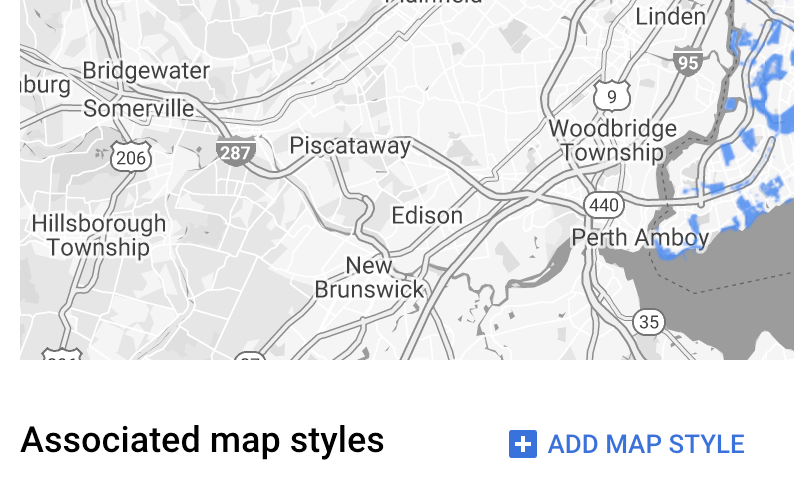
- Click the checkbox(es) for the Map Style(s) to associate and then click SAVE.
Use simple style rules
The simplest way to style features is to pass a FeatureStyleOptions to define
style attributes such as color, opacity, and line weight. Apply feature style
options directly to a dataset feature layer, or use them in conjunction with a
FeatureStyleFunction.
TypeScript
const styleOptions = { strokeColor: 'green', strokeWeight: 2, strokeOpacity: 1, fillColor: 'green', fillOpacity: 0.3, };
JavaScript
const styleOptions = { strokeColor: 'green', strokeWeight: 2, strokeOpacity: 1, fillColor: 'green', fillOpacity: 0.3, };
Use declarative style rules
Use the FeatureStyleFunction to set style rules declaratively, and apply them
across your entire dataset. Apply FeatureStyleOptions to a feature based on
dataset attribute values. You can also return null from your feature style
function, for example if you want a subset of features to remain invisible. This
example shows a style function that colors a set of points based on data
attributes:
TypeScript
function setStyle(/* FeatureStyleFunctionOptions */ params) { // Get the dataset feature, so we can work with all of its attributes. const datasetFeature = params.feature; // Get all of the needed dataset attributes. const furColors = datasetFeature.datasetAttributes['CombinationofPrimaryandHighlightColor']; // Apply styles. Fill is primary fur color, stroke is secondary fur color. switch (furColors) { case 'Black+': return /* FeatureStyleOptions */ { fillColor: 'black', pointRadius: 8 }; break; case 'Cinnamon+': return /* FeatureStyleOptions */ { fillColor: '#8b0000', pointRadius: 8 }; break; case 'Cinnamon+Gray': return /* FeatureStyleOptions */ { fillColor: '#8b0000', strokeColor: 'gray', pointRadius: 6 }; break; case 'Cinnamon+White': return /* FeatureStyleOptions */ { fillColor: '#8b0000', strokeColor: 'white', pointRadius: 6 }; break; case 'Gray+': return /* FeatureStyleOptions */ { fillColor: 'gray', pointRadius: 8 }; break; case 'Gray+Cinnamon': return /* FeatureStyleOptions */ { fillColor: 'gray', strokeColor: '#8b0000', pointRadius: 6 }; break; case 'Gray+Cinnamon, White': return /* FeatureStyleOptions */ { fillColor: 'silver', strokeColor: '#8b0000', pointRadius: 6 }; break; case 'Gray+White': return /* FeatureStyleOptions */ { fillColor: 'gray', strokeColor: 'white', pointRadius: 6 }; break; default: // Color not defined. return /* FeatureStyleOptions */ { fillColor: 'yellow', pointRadius: 8 }; break; } }
JavaScript
function setStyle(/* FeatureStyleFunctionOptions */ params) { // Get the dataset feature, so we can work with all of its attributes. const datasetFeature = params.feature; // Get all of the needed dataset attributes. const furColors = datasetFeature.datasetAttributes['CombinationofPrimaryandHighlightColor']; // Apply styles. Fill is primary fur color, stroke is secondary fur color. switch (furColors) { case 'Black+': return /* FeatureStyleOptions */ { fillColor: 'black', pointRadius: 8 }; break; case 'Cinnamon+': return /* FeatureStyleOptions */ { fillColor: '#8b0000', pointRadius: 8 }; break; case 'Cinnamon+Gray': return /* FeatureStyleOptions */ { fillColor: '#8b0000', strokeColor: 'gray', pointRadius: 6 }; break; case 'Cinnamon+White': return /* FeatureStyleOptions */ { fillColor: '#8b0000', strokeColor: 'white', pointRadius: 6 }; break; case 'Gray+': return /* FeatureStyleOptions */ { fillColor: 'gray', pointRadius: 8 }; break; case 'Gray+Cinnamon': return /* FeatureStyleOptions */ { fillColor: 'gray', strokeColor: '#8b0000', pointRadius: 6 }; break; case 'Gray+Cinnamon, White': return /* FeatureStyleOptions */ { fillColor: 'silver', strokeColor: '#8b0000', pointRadius: 6 }; break; case 'Gray+White': return /* FeatureStyleOptions */ { fillColor: 'gray', strokeColor: 'white', pointRadius: 6 }; break; default: // Color not defined. return /* FeatureStyleOptions */ { fillColor: 'yellow', pointRadius: 8 }; break; } }
Apply style to the dataset feature layer
To apply the styles in the feature style function:
- Get the dataset feature layer by calling
map.getDatasetFeatureLayer(), passing the dataset ID. - Apply the style by setting the feature style options (e.g.
styleOptions) or function (e.g.setStyle) on the dataset layer.
TypeScript
// Dataset ID for NYC park data. const datasetId = 'a75dd002-ad20-4fe6-af60-27cd2ed636b4'; const datasetLayer = innerMap.getDatasetFeatureLayer(datasetId); datasetLayer.style = styleOptions;
JavaScript
// Dataset ID for NYC park data. const datasetId = 'a75dd002-ad20-4fe6-af60-27cd2ed636b4'; const datasetLayer = innerMap.getDatasetFeatureLayer(datasetId); datasetLayer.style = styleOptions;
Remove styling from a layer
To remove styling from a layer, set the style to null:
featureLayer.style = null;
You can also return null from your feature style function, for example if you
want a subset of features to remain invisible.
Add attribution text
Your map must display any required attribution(s) when displaying uploaded datasets on Google Maps. Attribution text must not obscure or interfere with the Google logo.
One way to add attribution text is by using custom controls to place arbitrary HTML at standard positions on the map. The following code snippets show the HTML and CSS used for attributions in this sample:
<gmp-map center="40.757815, -73.933123" zoom="11" map-id="5cd2c9ca1cf05670" map-type-control="false"> <div id="attribution" slot="control-block-end-inline-start">Data source: NYC Open Data</div> </gmp-map>
#attribution { background-color: rgba(255, 255, 255, 0.7); font-family: "Roboto", "Arial", "sans-serif"; font-size: 10px; padding: 2px; margin: 2px; }