
This page explains how to set up and respond to commands as a Google Chat app.
Commands help users discover and use key features of a Chat app. Only Chat apps can see the content of a command. For example, if a user sends a message with a slash command, the message is only visible to the user and the Chat app.
To decide whether you should build commands, and to understand how to design user interactions, see Define all user journeys.
Types of Chat app commands
You can build Chat app commands as slash commands, quick commands, or message actions. To use each type of command, users can do the following:-
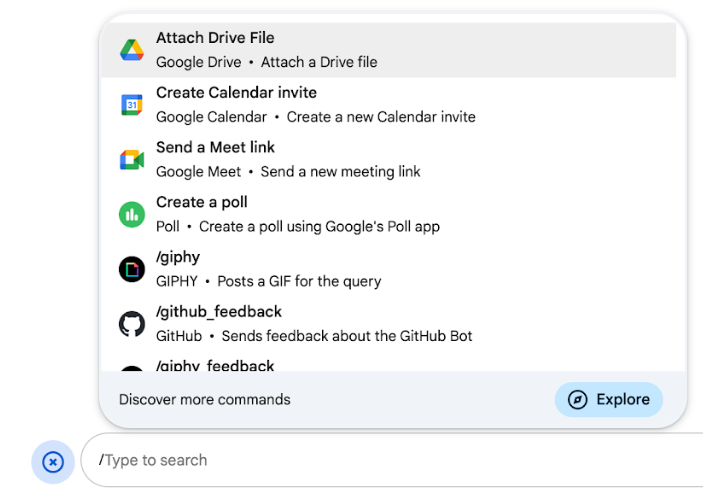
Slash commands: Users can select a slash command from the menu or type a slash (
/) and then a predefined text, such as/about. Chat apps typically require argument text for the slash command.Create a slash command if your Chat app requires additional input from the user. For example, you can create a slash command called
/searchthat runs after the user enters a phrase to search for, like/search receipts. -
Quick commands: Users use commands by opening the menu from the reply area of a Chat message. To use a command, they click Add
 and
select a command from the menu.
and
select a command from the menu.
Create a quick command if your Chat app can respond to the user immediately, without waiting for additional input. For example, you can create a quick command called Random image that responds immediately with an image.
-
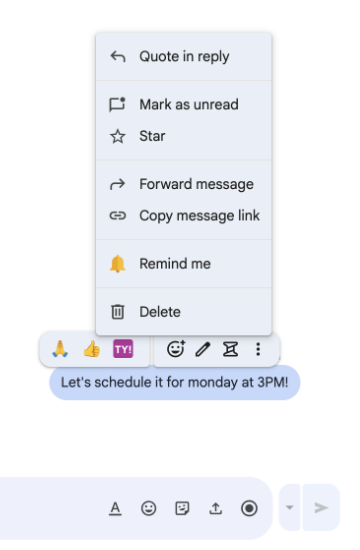
Message actions: ( Developer Preview) Users use message actions by hovering over a message and clicking on the three-dot menu. To use a command, they open the three-dot menu and select a command from the menu.
Create a message action if your Chat app can perform actions based on the context of a message.
The following images show how users discover the menu for slash and quick commands, and message actions:
Prerequisites
HTTP
A Google Workspace add-on that extends Google Chat. To build one, complete the HTTP quickstart.
Apps Script
A Google Workspace add-on that extends Google Chat. To build one, complete the Apps Script quickstart.
Set up the command
This section explains how to complete the following steps to set up a command:
- Create a name and description for the command.
- Configure the command in the Google Cloud console.
Name and describe the command
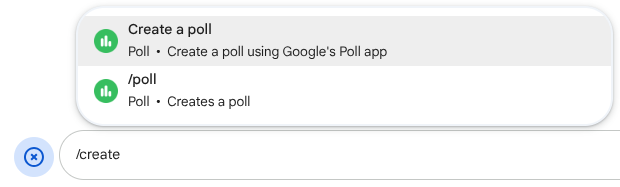
The name of a command is what users type or select to invoke the Chat app. A short description also appears below the name, to prompt users further about how to use the command:
When choosing a name and description for your command, consider the following recommendations:
To name a command:
- Use short, descriptive, and actionable words or phrases to make the commands clear to the
user. For example, instead of the name
Create a reminder, useRemind me. - Consider using a unique or common name for your command. If your command describes a
typical interaction or feature, you can use a common name that users recognize and expect,
such as
SettingsorFeedback. Otherwise, try to use unique command names, because if your command name is the same for other Chat apps, the user must filter through similar commands to find and use yours.
To describe a command:
- Keep the description short and clear so that users know what to expect when they use the command.
- Let users know if there are any formatting requirements for the command. For example, if you
create a slash command that requires argument text, set the description to something like
Remind me to do [something] at [time]. - Let users know if the Chat app replies to everyone in the space, or
privately to the user who invokes the command. For example, for the quick command
About, you could describe it asLearn about this app (Only visible to you).
Configure the command in the Google Cloud console
To create a slash command, quick command, or message action, you specify information about the command or action in your Chat app's configuration for the Google Chat API.
To configure a command in the Google Chat API, complete the following steps:
In the Google Cloud console, click Menu > APIs & Services > Enabled APIs & Services > Google Chat API
Click Configuration.
Under Connection settings, go to Triggers and specify your endpoint details. You must use this trigger in the following section to respond to the command.
- HTTP endpoint URL: You may specify one common HTTP endpoint URL here. Alternatively, to use different HTTP endpoints for different triggers, specify the endpoint directly in the App command field.
- Apps Script: Enter the Apps Script Deployment ID. By default,
the
onAppCommandfunction will be invoked. To use a different Apps Script function, specify the custom function name in the App command field.
Under Commands, click Add a command.
Enter the following information about the command:
- Command ID: a number from 1 to 1000 that your Chat app uses to recognize the command and return a response.
- Description: the text that describes how to use and format the command. Descriptions can be up to 50 characters.
- Command type: select either Quick command, Slash command, or Message action.
- Specify a name for the command:
- Quick command name: The display name that users select from the
menu to invoke the command. Can be up to 50 characters and include
special characters. For example,
Remind me. - Slash command name: The text that users type to invoke the
command in a message. Must start with a slash, contain only text, and
can be up to 50 characters. For example,
/remindMe. - Message action name:
( Developer Preview)
The display name that users select from the
menu to invoke the message action. Can be up to 50 characters and include
special characters. For example,
Remind me.
- Quick command name: The display name that users select from the
menu to invoke the command. Can be up to 50 characters and include
special characters. For example,
Optional: Loading notification message: ( Developer Preview) A toast notification message to display to the user while the message action is executing. Only available for message actions that don't open dialogs.
Optional: If you want your Chat app to respond to the command with a dialog, select the Open a dialog checkbox.
Click Save.
The command is now configured for the Chat app.
Respond to a command
When users use a command, your Chat app
receives an event object.
The event payload contains an
appCommandPayload
object with details about the command that was invoked (including the command
ID and the command type), so that you can return an appropriate response.
The event object is sent to the HTTP endpoint or Apps Script
function that you specified when you configured the App command
trigger.

/help to explain how to get support.The following code shows an example of a Chat app
that replies to the slash command /about with a text message. To respond to
slash commands, the Chat app handles event objects from
an App command trigger. When the payload of an event object contains a slash
command ID, Chat app returns the action DataActions
with a createMessageAction object:
Node.js
Python
Java
Apps Script
To use this code sample, replace ABOUT_COMMAND_ID with the
command ID that you specified when you
configured the command in the Chat API.
Respond to a message action
The following code shows an example of a Chat app
that replies to the message action Remind me with a text message. To respond to
message actions, the Chat app handles event objects from
an App command trigger. When the payload of an event object contains a
message action command ID, Chat app returns the action
DataActions with a createMessageAction
object:
Node.js
/**
 * Responds to an APP_COMMAND interaction event from Google Chat.
 *
 * @param {Object} event The interaction event from Google Chat.
 * @param {Object} res The HTTP response object.
 * @return {Object} The JSON response message with a confirmation.
 */
function onAppCommand(event, res) {
  // Collect the command ID and type from the event metadata.
  const {appCommandId, appCommandType} =
    event.chat.appCommandPayload.appCommandMetadata;

  if (appCommandType === 'MESSAGE_ACTION' &&
      appCommandId === REMIND_ME_COMMAND_ID) {

    // Message actions can access the context of the message they were
    // invoked on, such as the text or sender of that message.
    const messageText = event.chat.appCommandPayload.message.text;

    // Return a response that includes details from the original message.
    return res.json({
      "hostAppDataAction": {
        "chatDataAction": {
          "createMessageAction": {
            "message": {
              "text": `Setting a reminder for message: "${messageText}"`
            }
          }
        }
      }
    });
  }
}
Python
def on_app_command(event):
    """Responds to an APP_COMMAND interaction event from Google Chat.

    Args:
        event (dict): The interaction event from Google Chat.

    Returns:
        dict: The JSON response message with a confirmation.
    """
    # Collect the command ID and type from the event metadata.
    payload = event.get('chat', {}).get('appCommandPayload', {})
    metadata = payload.get('appCommandMetadata', {})
    if metadata.get('appCommandType') == 'MESSAGE_ACTION' and \
       metadata.get('appCommandId') == REMIND_ME_COMMAND_ID:

        # Message actions can access the context of the message they were
        # invoked on, such as the text or sender of that message.
        message_text = payload.get('message', {}).get('text')

        # Return a response that includes details from the original message.
        return {
            "hostAppDataAction": {
                "chatDataAction": {
                    "createMessageAction": {
                        "message": {
                            "text": f'Setting a reminder for message: "{message_text}"'
                        }
                    }
                }
            }
        }
Java
/**
 * Responds to an APP_COMMAND interaction event from Google Chat.
 *
 * @param event The interaction event from Google Chat.
 * @param response The HTTP response object.
 */
void onAppCommand(JsonObject event, HttpResponse response) throws Exception {
  // Collect the command ID and type from the event metadata.
  JsonObject payload = event.getAsJsonObject("chat").getAsJsonObject("appCommandPayload");
  JsonObject metadata = payload.getAsJsonObject("appCommandMetadata");
  String appCommandType = metadata.get("appCommandType").getAsString();

  if (appCommandType.equals("MESSAGE_ACTION")) {
    int commandId = metadata.get("appCommandId").getAsInt();
    if (commandId == REMIND_ME_COMMAND_ID) {
      // Message actions can access the context of the message they were
      // invoked on, such as the text or sender of that message.
      String messageText = payload.getAsJsonObject("message").get("text").getAsString();

      // Return a response that includes details from the original message.
      JsonObject responseMessage = new JsonObject();
      responseMessage.addProperty("text", "Setting a reminder for message: " + messageText);

      JsonObject createMessageAction = new JsonObject();
      createMessageAction.add("message", responseMessage);

      JsonObject chatDataAction = new JsonObject();
      chatDataAction.add("createMessageAction", createMessageAction);

      JsonObject hostAppDataAction = new JsonObject();
      hostAppDataAction.add("chatDataAction", chatDataAction);

      JsonObject finalResponse = new JsonObject();
      finalResponse.add("hostAppDataAction", hostAppDataAction);

      response.getWriter().write(finalResponse.toString());
    }
  }
}
Apps Script
/**
 * Responds to an APP_COMMAND interaction event in Google Chat.
 *
 * @param {Object} event The interaction event from Google Chat.
 * @return {Object} The JSON response message with a confirmation.
 */
function onAppCommand(event) {
  // Collect the command ID and type from the event metadata.
  const {appCommandId, appCommandType} =
    event.chat.appCommandPayload.appCommandMetadata;

  if (appCommandType === 'MESSAGE_ACTION' &&
      appCommandId === REMIND_ME_COMMAND_ID) {

    // Message actions can access the context of the message they were
    // invoked on, such as the text or sender of that message.
    const messageText = event.chat.appCommandPayload.message.text;

    // Return a response that includes details from the original message.
    return CardService.newChatResponseBuilder()
        .setText("Setting a reminder for message: " + messageText)
        .build();
  }
}
To use this code sample, replace REMIND_ME_COMMAND_ID with the
command ID that you specified when you
configured the command in the Chat API.
Test the command
To test the command and code, see Test interactive features for Google Chat apps.
To learn how to test and use the command in the Chat UI, see Use apps in Google Chat in the Google Chat Help documentation.
Related topics
- View Chat app samples that use commands
- Send a message
- Open interactive dialogs