
Coding level: Intermediate
Duration: 25 minutes
Project type: Google Workspace add-on
extending Chat.
Objectives
- Understand what the solution does.
- Understand what the Apps Script services do within the solution.
- Set up your environment.
- Set up the script.
- Run the script.
About this solution
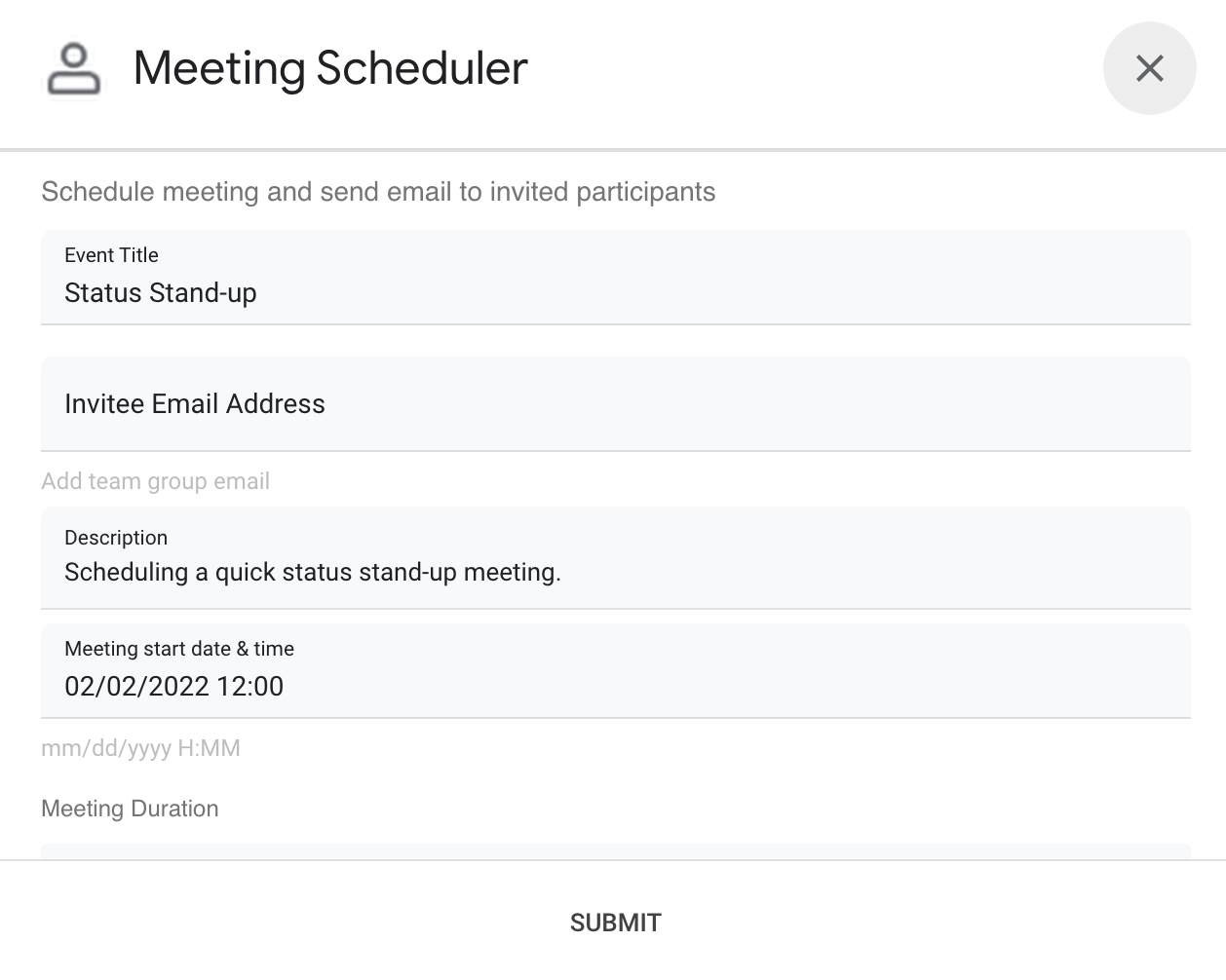
Schedule a meeting in Google Calendar from within a direct message (DM) or a space in Google Chat. You can set specific details for the meeting, such as subject, start time, or duration, or use the default settings for instant meeting scheduling.
How it works
The Chat app script uses slash commands and dialogs to get meeting details from users and schedule a Calendar event. The script includes default meeting settings that can be customized to fit your needs.
Apps Script services
This solution uses the following services:
- Calendar service–Creates the calendar event from the provided meeting info.
- Base service–Uses the
Sessionclass to get the script's time zone. Calendar uses this time zone when scheduling the event. - Utilities service–Formats the date for the calendar event and encodes the event ID to help get the event URL.
Prerequisites
- A Business or Enterprise Google Workspace account with access to Google Chat.
-
A Google Cloud project. To create one, see Create a Google Cloud project.
Set up your environment
Open your Cloud project in the Google Cloud console
If it's not open already, open the Cloud project that you intend to use for this sample:
- In the Google Cloud console, go to the Select a project page.
- Select the Google Cloud project you want to use. Or, click Create project and follow the on-screen instructions. If you create a Google Cloud project, you might need to turn on billing for the project.
Turn on the API
Before using Google APIs, you need to turn them on in a Google Cloud project. You can turn on one or more APIs in a single Google Cloud project.In your Cloud project, turn on the Google Chat API.
Configure the OAuth consent screen
All Chat apps require a consent screen configuration. Configuring your app's OAuth consent screen defines what Google displays to users and registers your app so you can publish it later.
- In the Google API Console, go to Menu > Google Auth platform > Branding.
- If you have already configured the Google Auth platform, you can configure the following OAuth Consent Screen settings in Branding, Audience, and Data Access. If you see a message that says Google Auth platform not configured yet, click Get Started:
- Under App Information, in App name, enter a name for the app.
- In User support email, choose a support email address where users can contact you if they have questions about their consent.
- Click Next.
- Under Audience, select Internal.
- Click Next.
- Under Contact Information, enter an Email address where you can be notified about any changes to your project.
- Click Next.
- Under Finish, review the Google API Services User Data Policy and if you agree, select I agree to the Google API Services: User Data Policy.
- Click Continue.
- Click Create.
- For now, you can skip adding scopes. In the future, when you create an app for use outside of your Google Workspace organization, you must change the User type to External. Then add the authorization scopes that your app requires. To learn more, see the full Configure OAuth consent guide.
Set up the script
Create the Apps Script project
- Click the following button to open the Schedule meetings from Google Chat
Apps Script project.
Open the project - Click Overview .
- On the overview page, click Make a copy
 .
.
Create a test deployment
- In your copied Apps Script project, click Deploy > Test deployments.
- Copy the Head deployment ID for use in a later step and click Done.
Configure the Chat API
- In the Google API Console, go to the Chat API page.
Go to Chat API - Click Configuration.
- Configure the Chat API with the following information:
- Name:
Meeting Scheduler - Avatar URL:
https://goo.gle/3SfMkjb. - Description:
Quickly create meetings. - Functionality: Check both boxes to let users message the app directly and add it to spaces.
- Connection settings: Click Apps Script and enter the head deployment ID.
- Commands: Add slash commands for
/helpand/schedule_Meetingby taking the following steps:- Click Add command and configure it with the following
information:
- Command ID:
1. - Description:
Learn what this app does. - Command type:
Slash command. - Slash command name:
/help.
- Command ID:
- Click Add command again and configure it with the following
information:
- Command ID:
2. - Description:
Schedule a meeting. - Command type:
Slash command. - Slash command name:
/schedule_Meeting. - Check the Opens a dialog box.
- Command ID:
- Click Add command and configure it with the following
information:
- Permissions: Select Specific people and groups in your domain and enter your email address.
- Name:
- Click Save.
Run the script
Open Google Chat.
Click Start a chat .
Search for the app's name,
Meeting Scheduler.Send an initial message, such as
hello, to prompt authorization.When the app replies, click Configure and authorize the app. If the OAuth consent screen displays the warning, This app isn't verified, continue by selecting Advanced > Go to {Project Name} (unsafe).
Send
/schedule_Meetingto the app.In the dialog, add at least one invitee email address. You can update the other fields or use the default entries.
Click Submit.
To view the meeting, click Open Calendar event.
Review the code
Click to review the Apps Script code for this solution hosted on GitHub: