
Page Summary
-
The "Account and Users" page, found under the Configuration tab, allows management of global settings for the Partner Portal account and its users.
-
The Account section displays your Partner ID, account name, and integration status, which can be re-enabled by Administrators and Editors if it becomes disabled.
-
Four user roles exist within the Partner Portal: Read only, Editor, Administrator, and Tester, each with specific access levels.
-
New users can be added by navigating to the 'Users' tab in the Partner Portal and providing their name, email, role, and mailing list subscriptions.
-
All Partner Portal users must use Google Accounts, and instructions are provided for creating one if needed.
The Account and Users page, located under the Configuration tab, includes global settings to manage the Partner Portal account and the users who have access to it.
Account
The "Account" tab lets you view your Partner ID (also referred to as your Aggregator ID) that was assigned to you when you began your integration. You can also view your account on-boarding status.
Account Name
You can view your account name, which is also your default brand name.
Integration status
Your integration status (enabled / disabled) is displayed here. If your integration has been automatically disabled due to issues detected by Actions Center's monitoring system, once you've fixed the underlying problem, you may attempt to re-enable your integration by using the toggle switch to re-enable. Users with Administrator and Editor roles may re-enable the integration. Wait several minutes after clicking this button for your integration to be re-enabled.
Users
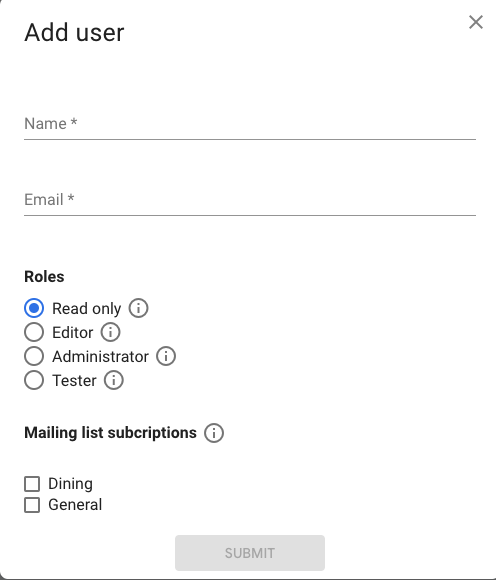
There are four types of users of the Partner Portal: Read-only, Administrator, Editor and Tester
- Read-only: Can only read account data and merchants
- Editor: Can read and edit account data (excluding SSH keys) and merchants
- Administrator: Can read and edit account data and merchants, as well as manage account users
- Tester: Can test integration before it is launched (For Food Ordering End-to-End partners only)
Add New Users
To add a user to the Partner Portal, follow these steps:
- Go to the Partner Portal and visit the 'Account and Users' section

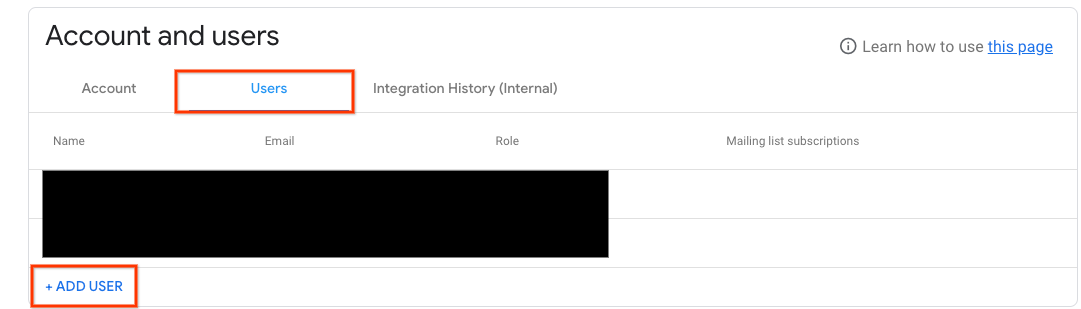
- Jump to the 'Users' tab and click '+ ADD USER'
- Fill in the name, email address, role and Mailing list subscriptions for the user here and click Submit
All users of the Partner Portal must use Google Accounts. If you use Gmail, or if your organization uses G Suite, your email address is already a Google Account. To create a Google Account, see Create your Google Account.